Shoppers share their wishlists as gift lists, but they don't look like one.
Around the holidays, shoppers send their wishlist to family and friends so they know what to buy. Swym's sharing gets the list to them, but it arrives as a regular wishlist: nothing says who it's for or what the occasion is, and once a gift lands in the giver's cart, there's no sign it was bought as a gift.
What this prompt does?
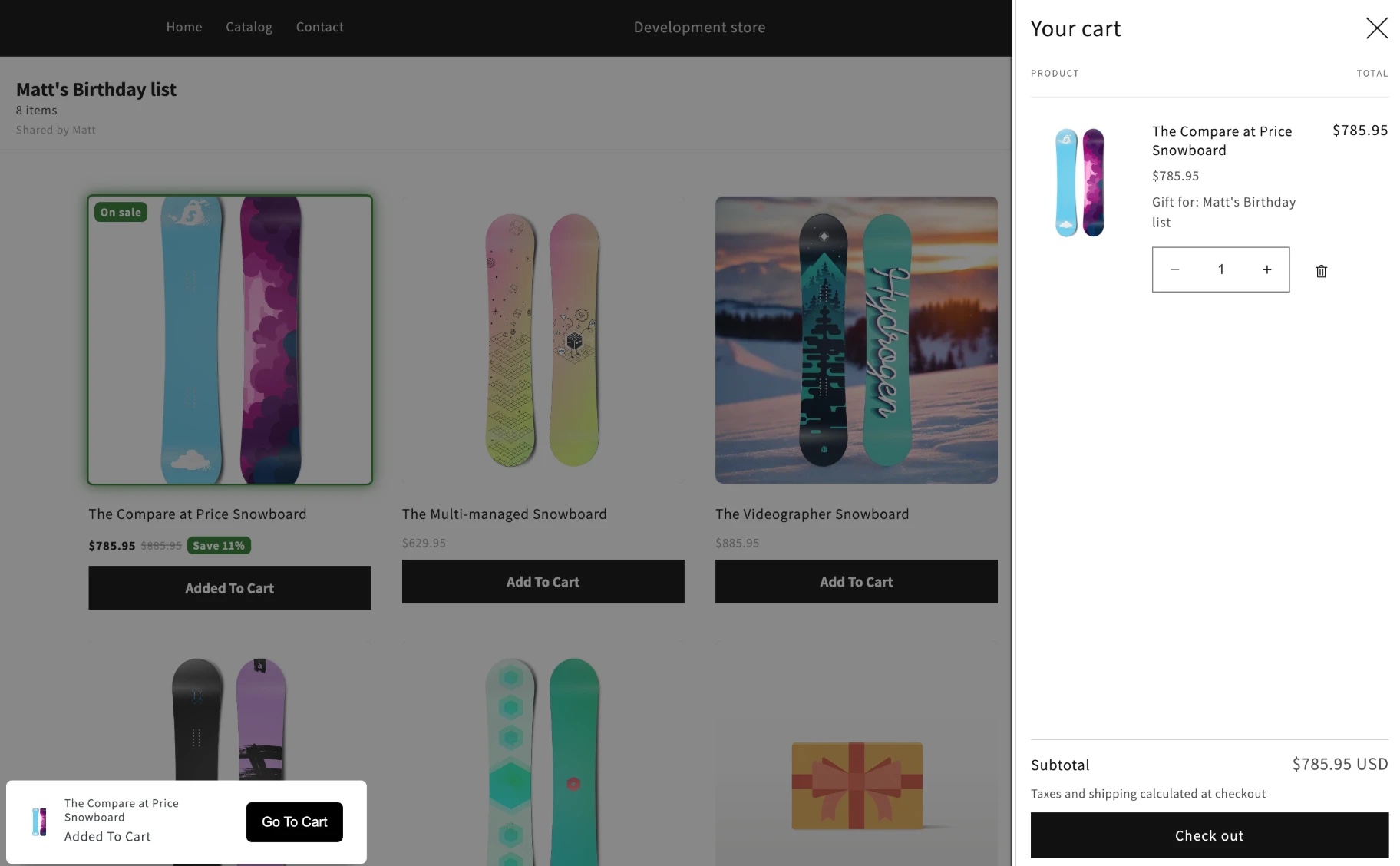
When shoppers share a wishlist, they can pick an occasion (like Christmas or a birthday) and add their name. Anyone opening the link sees "[name]'s [occasion] list" on a page that matches your wishlist. Items they add to their cart from it get a "Gift for" label in the cart and on the order. Shares without an occasion work as before.
What the gift giver sees: the list's name and occasion on a page that matches your wishlist, and a "Gift for" label on what they add to the cart.
What you can change
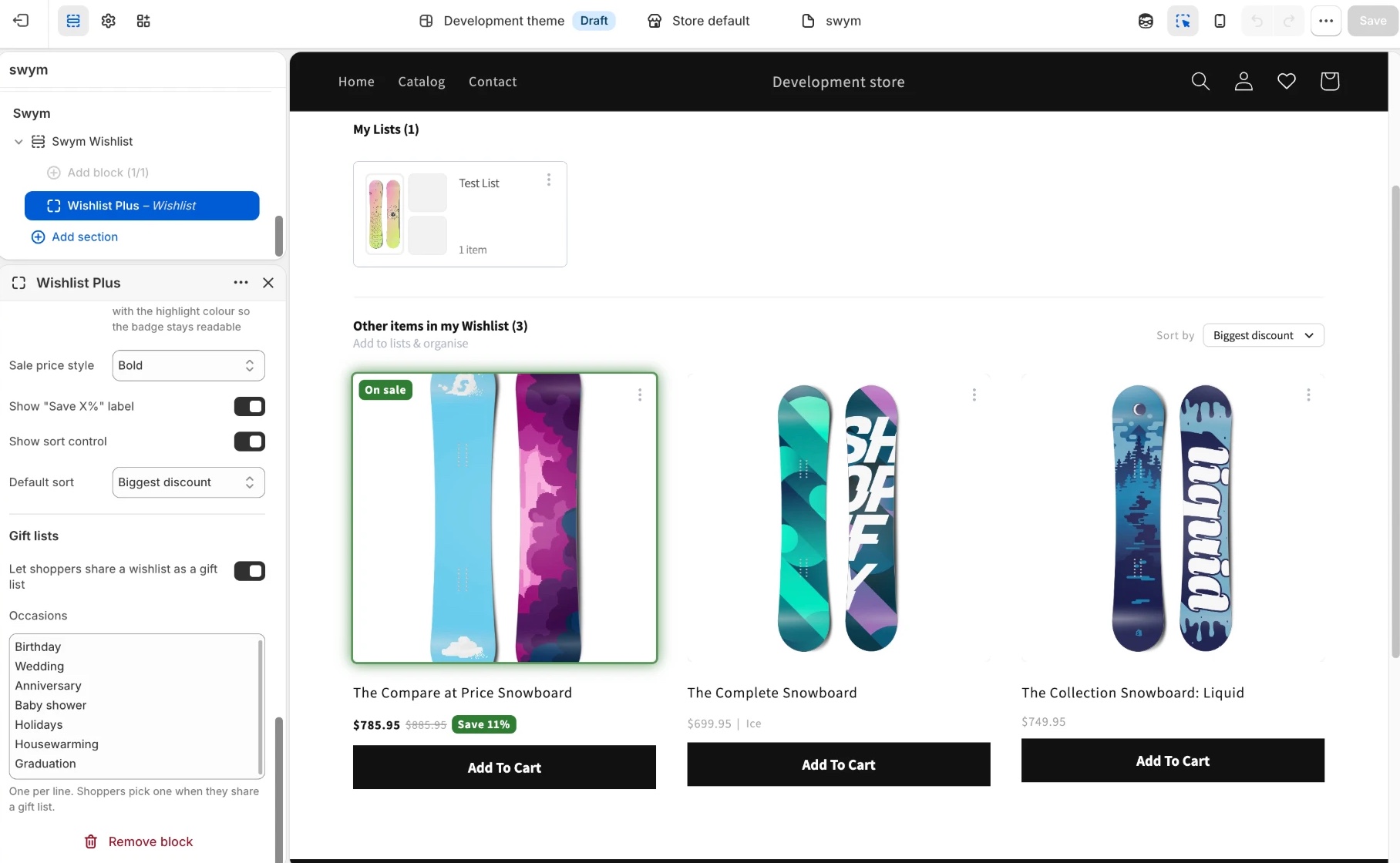
In Shopify admin, go to Online Store > Themes and click Customize, then open Swym > Swym Wishlist > Wishlist Plus and scroll to Gift lists. No code needed.
Gift lists on or off: Turn the occasion picker in the share popup on or off. Regular sharing keeps working either way.
Occasions: The list shoppers pick from, one per line. It starts with Birthday, Wedding, Anniversary, Baby shower, Holidays, Housewarming and Graduation, so add your own (Diwali, Eid, Secret Santa) or remove what doesn't fit your store.
Wording: The popup heading, the "[name]'s [occasion] list" title and the "Gift for" cart label are all theme text. Change them under Online Store > Themes > ... > Edit default theme content, by searching for "gift".
The Gift lists settings, below Spot the Deals' settings in the same block.
Take it further
Gift lists save their details, the shopper's name and the occasion, on the wishlist itself, in a field Swym calls list properties (lprops). Your AI assistant can save more there in exactly the same way, and that opens up ideas like these. Paste a prompt into the same assistant you used for this playbook.
A personal message: Let the list owner say a few words to their family and friends. “Add an optional personal message to gift lists: let the owner write it in the share popup, save it with the gift details, and show it under the title on the shared page.”
Event date and countdown: Give givers a nudge with "12 days to go". “Add an optional event date to gift lists: ask for it in the share popup, save it with the gift details, and show a countdown under the title on the shared page. Hide the countdown once the date has passed.”
A gift note from the giver: Let givers write a message for the card, saved on the order. “When someone adds an item to the cart from a gift list, let them write a short gift message, and save it on the cart line as a "Gift message" property next to "Gift for".”
Gift wrap: Offer wrapping right when someone buys from a gift list. “When someone adds an item to the cart from a gift list, offer gift wrap (my product: [product handle]) with a one-click add.”
Occasion styling: Make a birthday list feel different from a wedding list. “On the shared gift list page, add a subtle banner that changes with the occasion, like snowflakes for Holidays and confetti for Birthday. Keep the text readable.”
Gift orders in Shopify Flow: Gift orders carry the "Gift for" label, so Shopify Flow can act on them with no code: trigger on Order created, check for a "Gift for" line item property, then tag the order "Gift" or add a note for your packing team.
Shipping to the list owner, with care. You can also ask your AI assistant to let owners add a shipping address to their gift list, so givers can send gifts straight to them and have it filled in at checkout. Think it through first: anything saved in list properties can be read by anyone with the share link, including people it's forwarded to or who find it on social media, even if the page doesn't show it. If you add it, make it opt-in, warn the owner clearly before they save it, and consider showing givers only the city. Ask your assistant to confirm how Shopify currently supports pre-filling the address at checkout.
This playbook adds to the wishlist UI from Customisable Wishlist UI. Run that playbook first. If you skip it, the assistant makes no changes and tells you which tool to run. Your AI coding assistant also needs to be connected to the Swym Dev Docs MCP server (Connect Your AI Assistant).

 Plays Home