
Swym's wishlist works well straight out of the box, and Swym admin covers the everyday settings. But every store has its own ideas: a seasonal banner, your own badges on the cards, a layout that fits your brand. Ideas like those need access to the wishlist's code, and right now that code lives with Swym, not in your theme.
This prompt copies Swym's wishlist into your theme as regular theme files. Your shoppers won't notice a thing: it looks and works exactly as it does today. The difference is that it's now yours to build on, in the theme editor or with your AI assistant. A few ideas: Show your own badges on wishlist items, like "Low stock" or "Bestseller" Add a holiday or sale banner to the top of the wishlist Restyle the cards and buttons to match the rest of your store Rewrite the empty wishlist message, or point it to a collection Or start from a ready-made playbook: Spot the Deals , Gift List or Win Your Wishlist
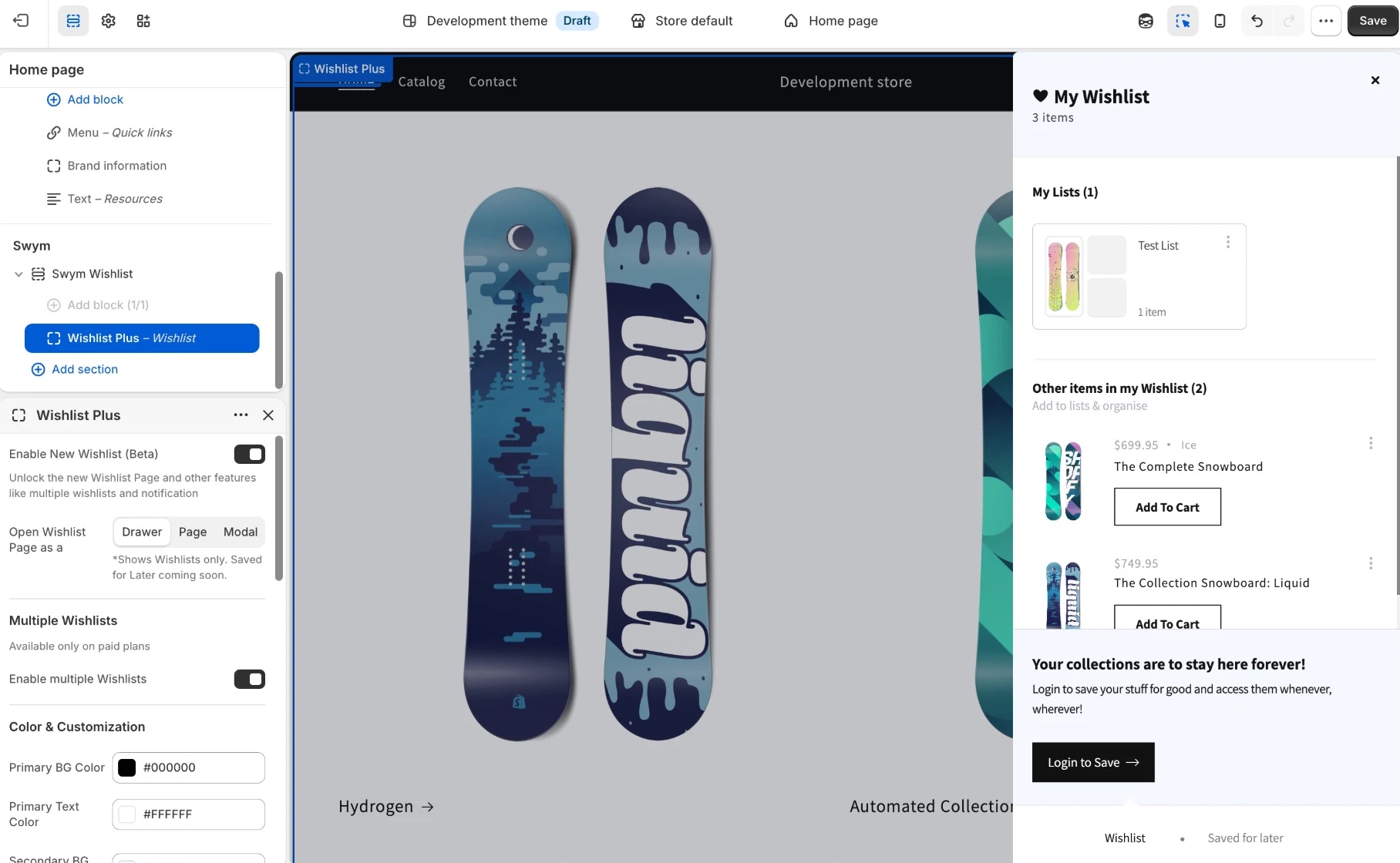
The wishlist as a drawer, with multiple wishlists on, set up entirely from the theme editor.
In Shopify admin, go to Online Store > Themes and click Customize on the theme you installed it on. In the left sidebar, scroll past the footer to Swym, open Swym Wishlist and click Wishlist Plus. No code needed.
Need more than the settings? Your AI assistant can change anything else, from the card layout to the wording.
Good to know: if Swym's built-in wishlist UI (Control Center) is also switched on for your store, your theme's copy keeps working and keeps your settings. We'd still suggest asking Swym support to switch Control Center off, so shoppers' browsers don't load the wishlist twice.


Before you start:
This prompt assumes your AI coding assistant is already connected to the Swym Dev Docs MCP server. If it isn't set up yet, run the Connect Your AI Assistant playbook first, it's a single copy-paste prompt, otherwise the tool calls below won't resolve. You'll also need an AI assistant that can edit files and run terminal commands (for example Claude Code; chat-only assistants won't work), and your theme pulled locally with Shopify CLI.

Helping e-commerce brands craft a more seamless experience for their customers


