Shoppers enter your giveaway in their wishlist, but can't see it there.
Swym's Win Your Wishlist campaign gets shoppers building wishlists before BFCM, and its pop-up invites them in. But once they're in their wishlist, the place they actually enter, there's no sign of the campaign, and no way to tell whether they've entered or how close they are to your minimum.
What this prompt does?
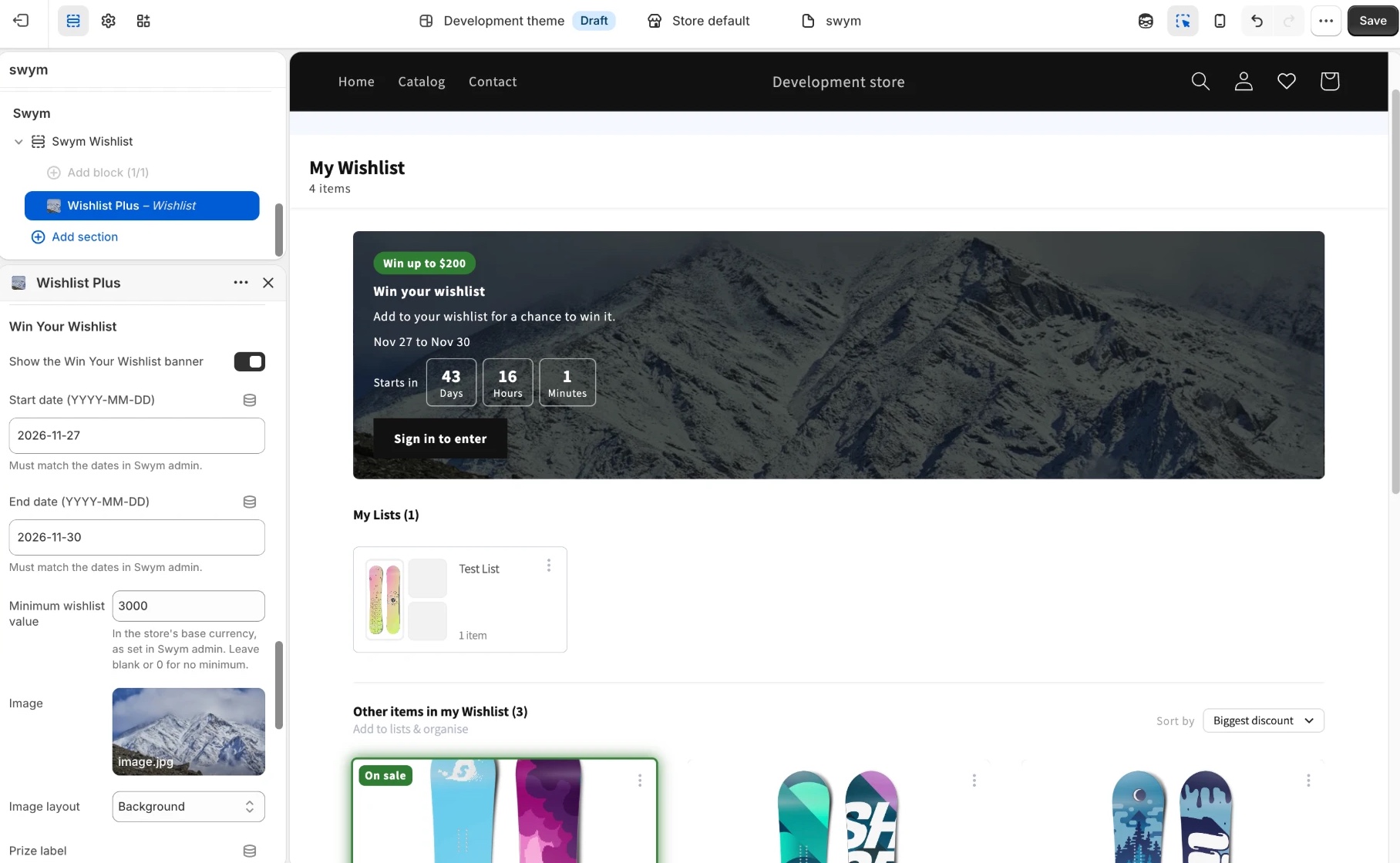
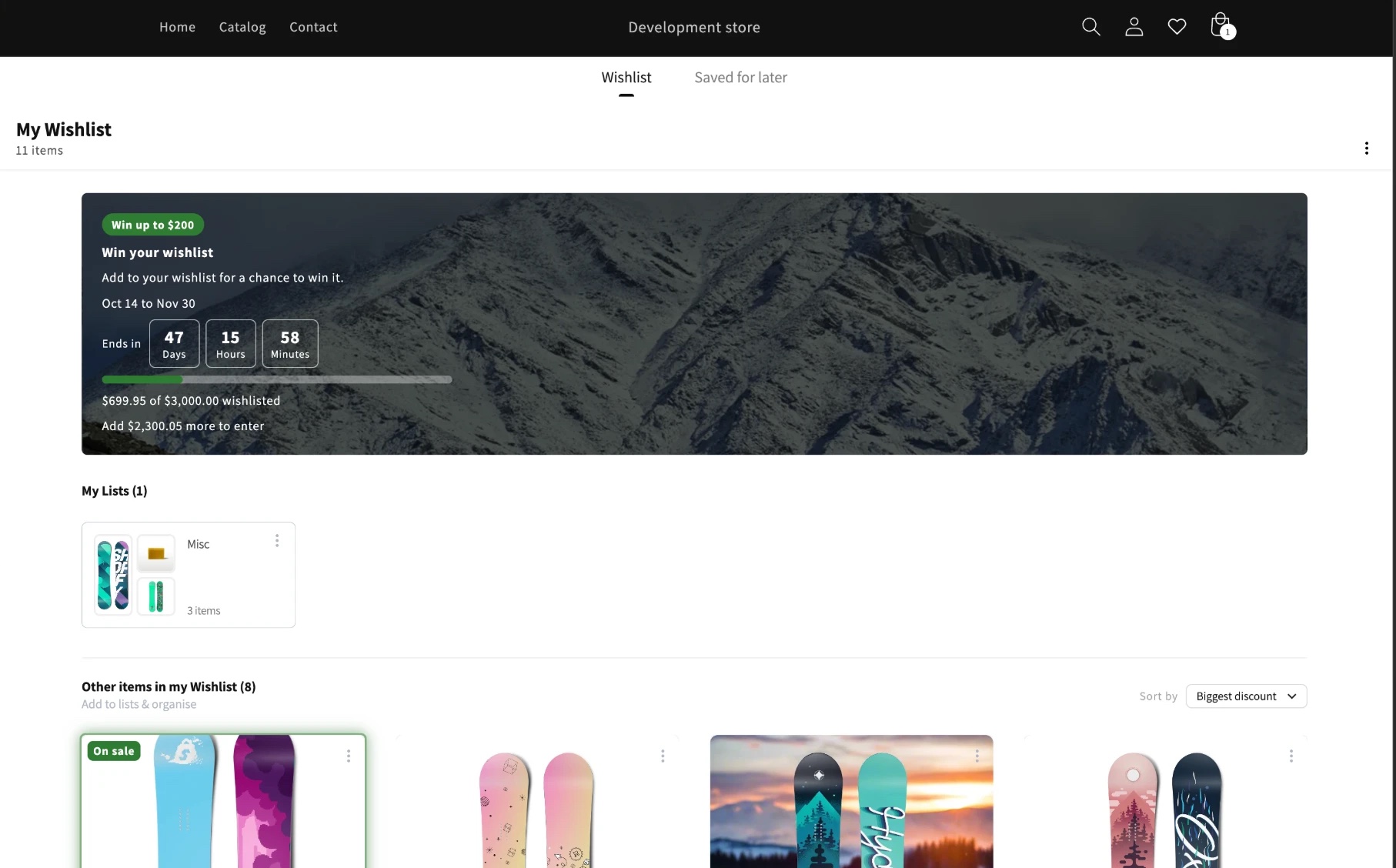
A campaign banner sits at the top of your wishlist with your prize, dates, a countdown, an optional image and a link to your campaign page. Signed-in shoppers see whether they're entered, or how far they are from your minimum wishlist value, and get a one-time "You're entered" message when they qualify. Guests are asked to sign in to enter.
The banner at the top of the wishlist, set up for a BFCM campaign: prize, dates, a countdown to the start and a background image.
What a signed-in shopper sees while the campaign runs: a countdown to the end, and their progress toward your minimum. Only items added during the campaign count.
Set up the campaign in Swym first
This playbook adds the campaign to your wishlist. The campaign itself, its dates, prizes and winners, lives in Swym. Set it up there first, then run the prompt with the same dates.
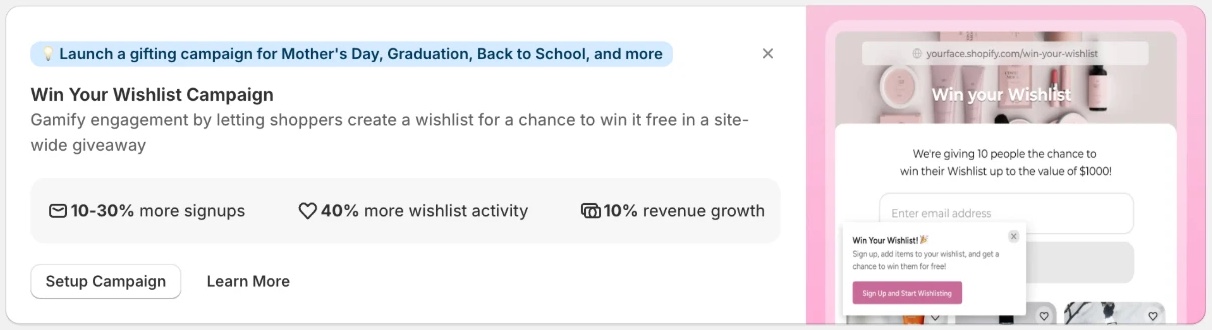
The campaign card in Wishlist Plus. Click Setup Campaign to start.
Start from the Win Your Wishlist Campaign card under Apps > Wishlist Plus > Marketing, and keep a note of your start and end dates: this playbook's prompt asks for them. To learn more, see Swym's Win Your Wishlist campaign guide.
What you can change
In Shopify admin, go to Online Store > Themes and click Customize, then open Swym > Swym Wishlist > Wishlist Plus and scroll to Win Your Wishlist. No code needed.
Show the banner: Switch it on when your campaign is ready. It starts off, so nothing shows until you say so.
Campaign dates: Your start and end dates, exactly as set in Swym admin. They drive the countdown and who counts as entered.
Minimum wishlist value: Optional. If your campaign has one, shoppers see a progress bar showing how far they have to go.
Words: The prize label, heading and text. They start as "Win up to $200", "Win your wishlist" and "Add to your wishlist for a chance to win it."
Image: Optional, shown to the left of the text or as the background.
Link: Point shoppers to your campaign details or terms, with your own button text ("See how it works" by default).
"You're entered" message: Turn the one-time message on or off, and write your own.
Campaign colour: One colour for the banner's accents, to match your campaign.
Take it further
A few ideas to ask your AI assistant for, using the campaign you've already set up. Paste a prompt into the same assistant you used for this playbook.
A nudge on product pages: Remind shoppers that saving an item enters them. “While my Win Your Wishlist banner is switched on, add a small line under the wishlist button on product pages: "Add to your wishlist to enter our giveaway", linking to the campaign details.”
A countdown in your announcement bar: Keep the deadline in front of every shopper, not just in the wishlist. “Use my Win Your Wishlist start and end dates from the wishlist settings to show a countdown in my theme's announcement bar while the campaign is running.”
A winners announcement: Close the loop once the campaign ends. “After my Win Your Wishlist campaign ends, replace the banner text with a "Congratulations to our winner" message I can edit in the theme editor.”
This playbook adds to the wishlist UI from Customisable Wishlist UI. Run that playbook first. If you skip it, the assistant makes no changes and tells you which tool to run. Your AI coding assistant also needs to be connected to the Swym Dev Docs MCP server (Connect Your AI Assistant). Set up your campaign in Swym first, too.