Your shoppers' saved items are on sale, but they don't stand out.
During BFCM, the items your shoppers wishlisted are the ones they're most likely to buy, and plenty of them will be discounted. Swym's wishlist shows the sale price, but in a long list it's easy to scroll past. Make the deals impossible to miss, and let shoppers bring them straight to the top.
What this prompt does?
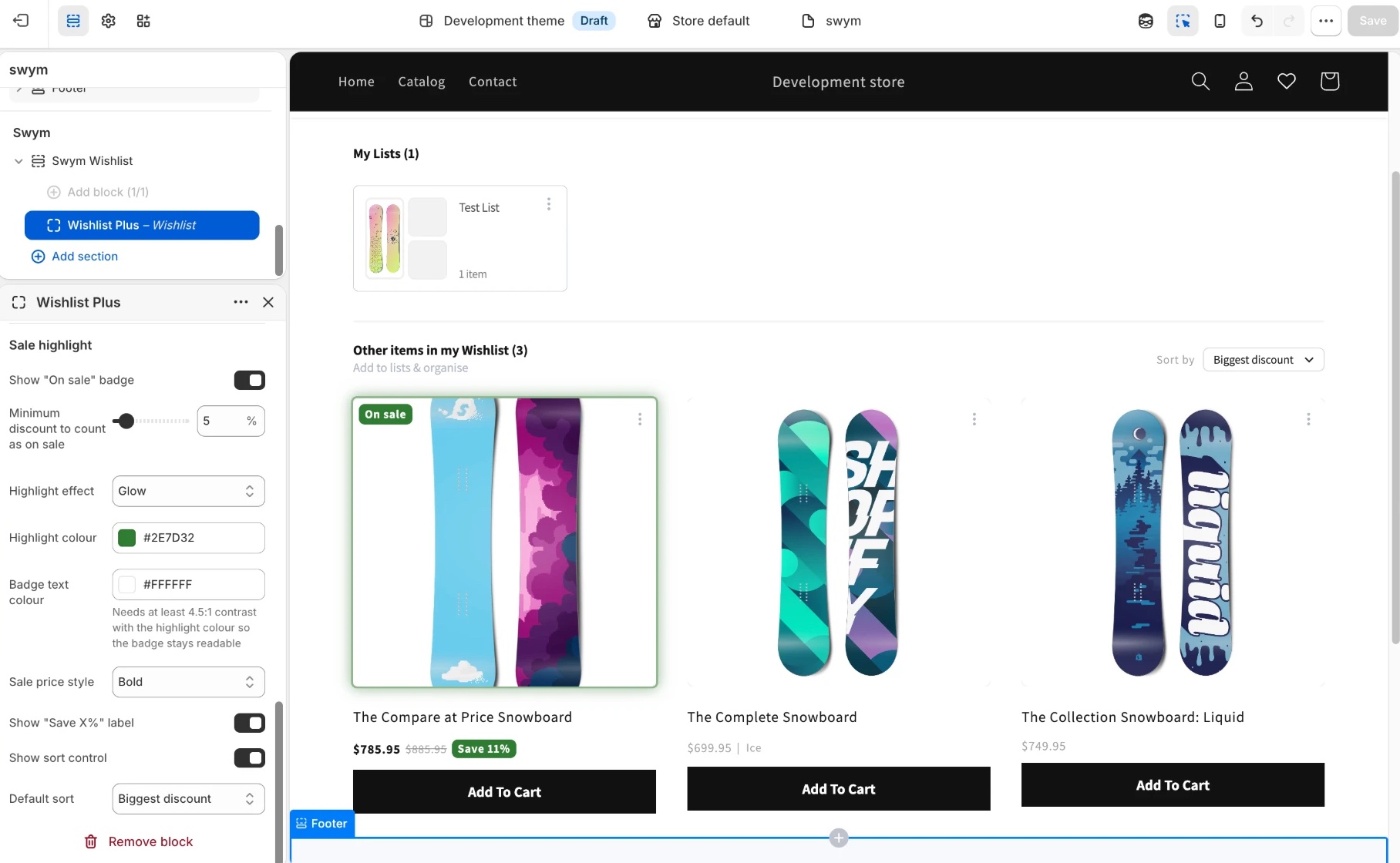
Saved items that are on sale get an "On sale" badge and the highlight effect you pick, so shoppers spot them straight away. Shoppers can also sort their wishlist by recently added, recently updated, price, or biggest discount. Shared wishlists get the same treatment, so friends and family shopping someone's list see the deals too. All of it can be switched on, off or restyled in the theme editor.
An on-sale item with the badge, glow and "Save 11%" label, sorted to the top by Biggest discount.
What you can change
Everything below lives in the theme editor, under Swym > Swym Wishlist > Wishlist Plus, in the Sale highlight group. No code needed.
"On sale" badge: Show or hide the badge on discounted items.
Minimum discount: How big a discount has to be before an item counts as on sale (5% by default), so a small markdown doesn't light up the whole list.
Highlight effect: Badge only, glow, outline or tint. Or describe your own effect and your AI assistant writes it for you.
Highlight and badge colours: Match your brand. The editor reminds you to keep the badge text readable against the colour you pick.
Sale price style: Leave the sale price as it is, make it bold, or show it in the highlight colour.
"Save X%" label: Show the saving right next to the price.
Sorting: Show or hide the "Sort by" control, and pick the order shoppers see first: recently added, recently updated, price low to high, price high to low, or biggest discount.
Want something these settings don't cover? The wishlist is part of your theme now, so you can ask your AI assistant for it.
This playbook adds to the wishlist UI from Customisable Wishlist UI. Run that playbook first. If you skip it, the assistant makes no changes and tells you which tool to run. Your AI coding assistant also needs to be connected to the Swym Dev Docs MCP server (Connect Your AI Assistant).